AI Notetaker
Last updated on • Disponible en Français
The AI Notetaker feature transcribes the conversations you have with candidates and others in your live interviews to assist with assessment and accessibility of the interview.
✅ This feature is currently only available for Enterprise and Custom plans.
Each individual call participant must opt into the AI Notetaker in order for their voice to be transcribed. Everyone in the call who agrees to the transcription will be transcribed. Opting into the AI Notetaker also provides closed captioning.
✅ The call still proceeds for those who opt out, but they will not be recorded in the AI Notes.
Enable the AI Notetaker
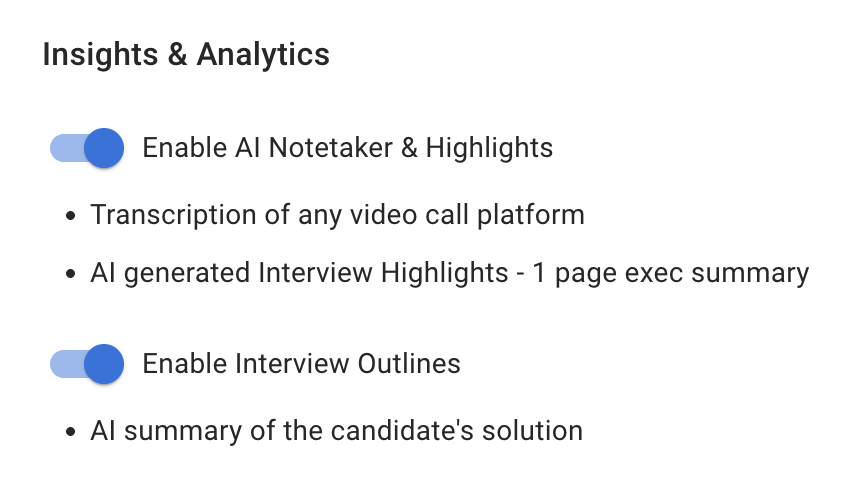
In the Organization Settings, scroll down to the Insights & Analytics and turn on the toggle if it’s not already turned on.
Starting the AI Notetaker
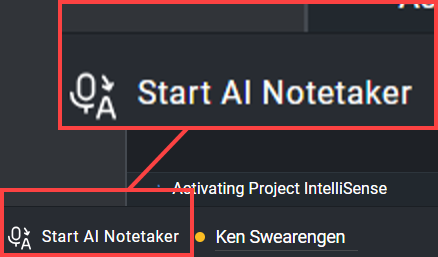
You have two ways to start the Notetaker, both options are located at the bottom left of the pad:
- With an audio/video call using Start Call.
- If you want to capture AI Notes without using CoderPad’s in-app calling function, you can select the Start AI Notetaker button.
Once you select one of these options, a verification window will pop-up asking you to confirm that you want your conversation recorded and transcribed.
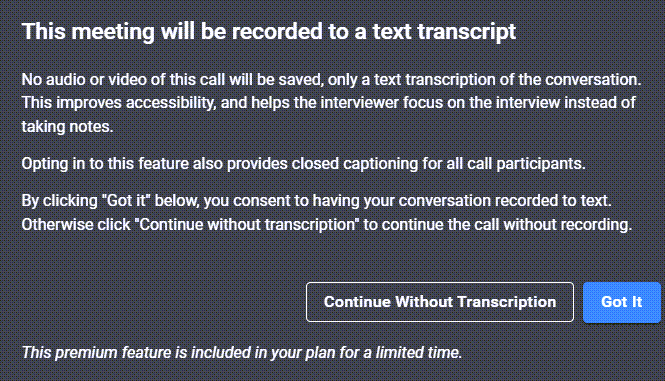
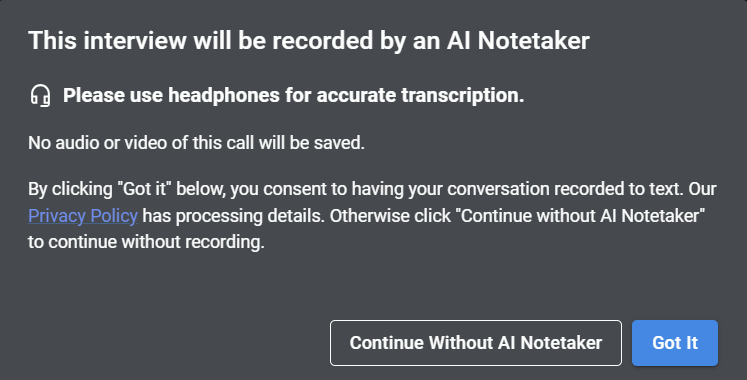
As you talk and the pad participants talk, the AI Notetaker feature will record your conversation. Once you’re done the interview, click End Interview to view the playback and see the AI Notes.
Closed captioning
Enabling AI Notetaker also allows you to enable closed captioning.
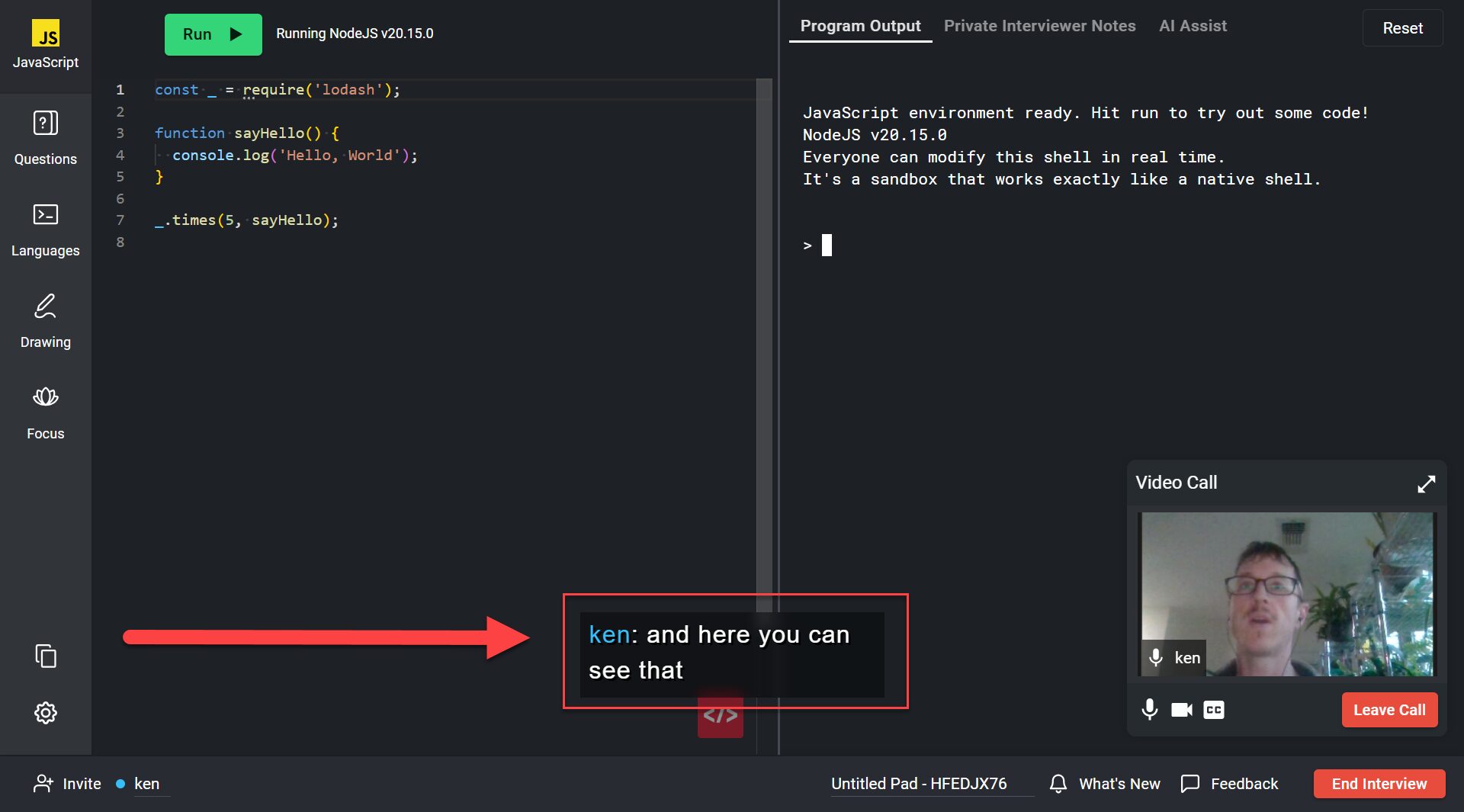
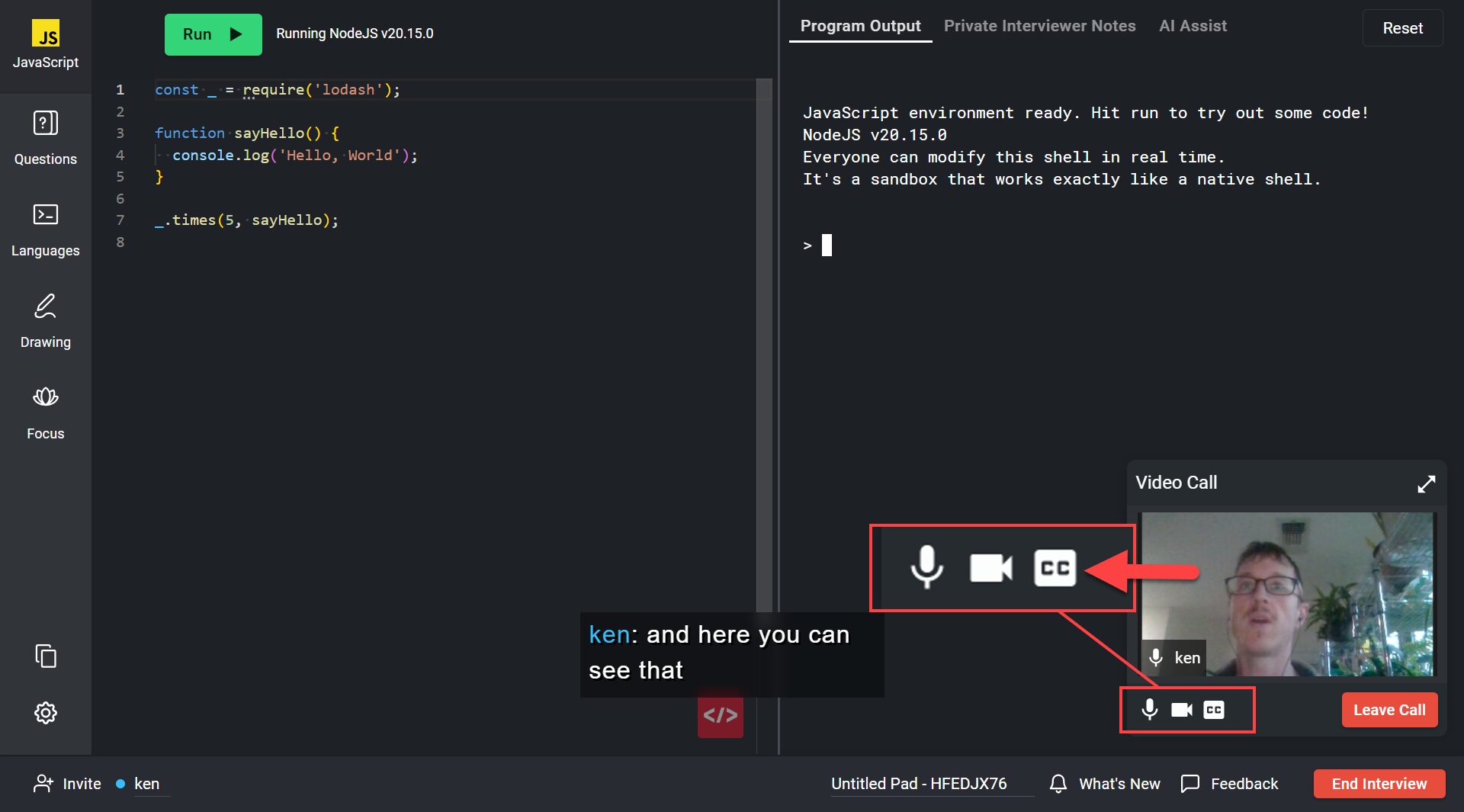
To enable or disable closed captioning, simply click on the CC icon in the video window.
Reviewing the AI Notes
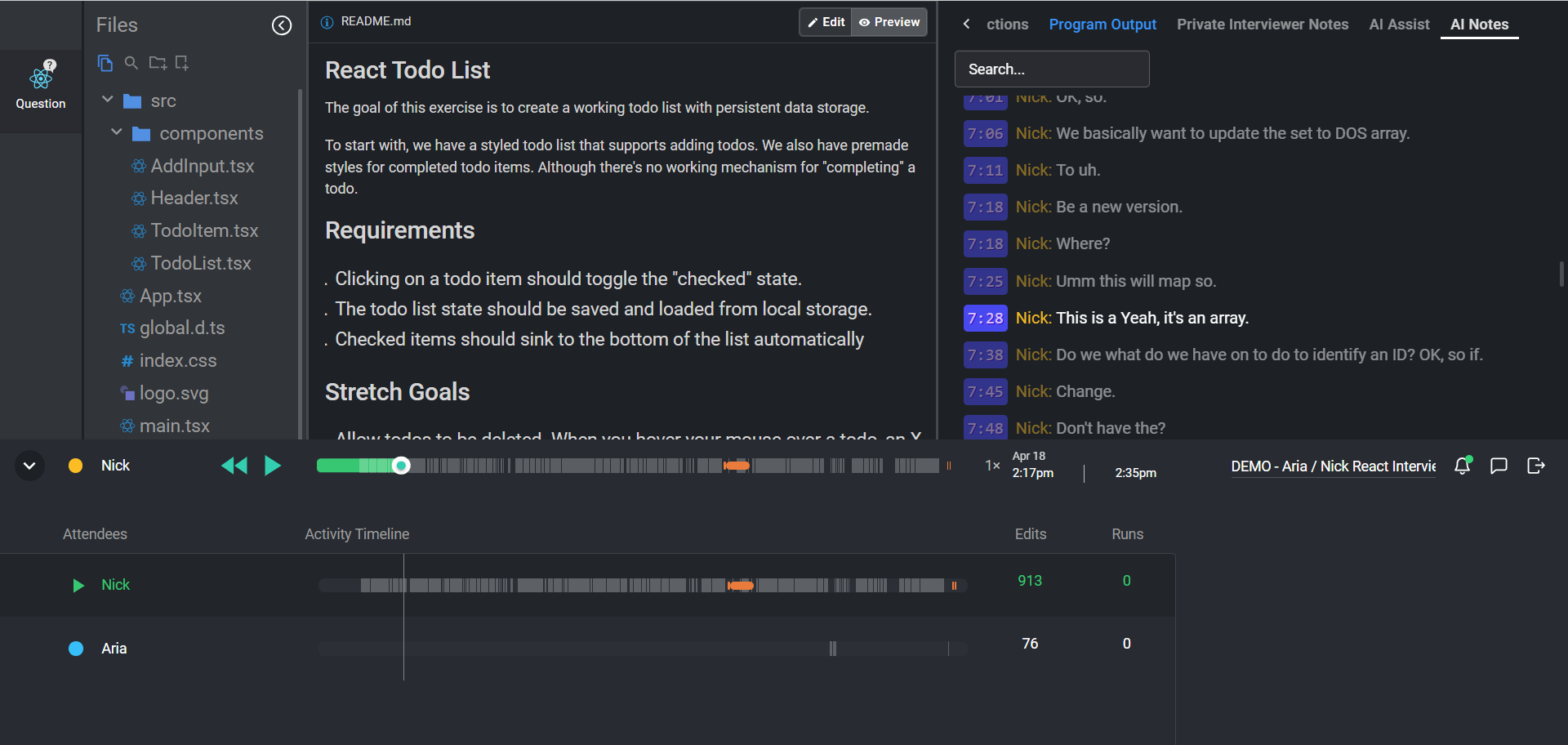
In the playback window, there will be a AI Notes tab in the top right window — click on this to view the transcript.
The AI Notes can be reviewed by any member of the organization in pad playback mode. There are timestamps to help you explore the AI Notes, as well as a Search bar to allow you to search for particular words or phrases that were used during the conversation.
The Notes are connected to the playback bar at the bottom of the screen. You can click on any line in the AI Notes and it will take you to that spot in the playback so you can see what coding was happening at that point in time.
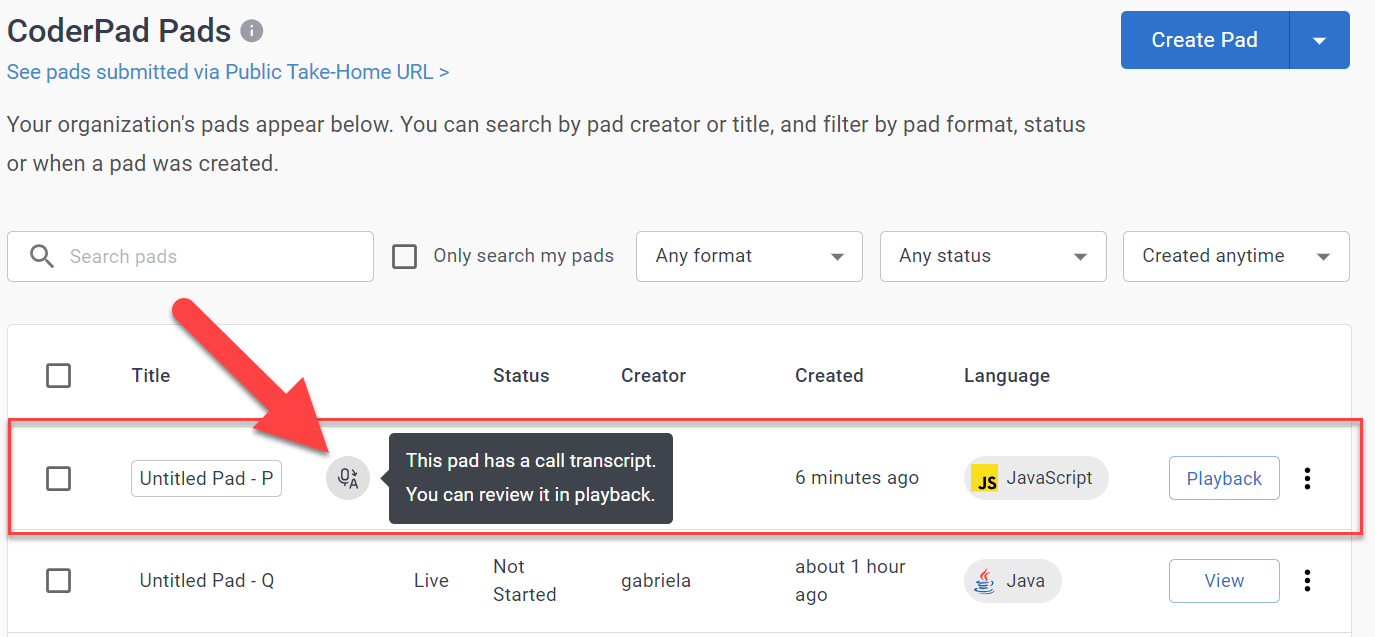
You can access the playback and AI Notes at any point by locating your interview in the Pads List and clicking on the Playback button. You can identify which pads have AI Note-generated transcripts in the dashboard by the AI Notes icon.
AI Notetaker FAQs
What will the candidate’s experience be like?
The candidate will be informed at the time they join the call that the call will be recorded to transcript only (no audio/video will be stored). They can agree to be transcribed or opt-out and join the call normally.
Will the candidate know they’re being recorded?
Yes, because they will accept (or not) up front.
Can the candidate opt out?
Yes (see above).
Can someone opt out halfway if they change their mind about being transcribed for AI Notes?
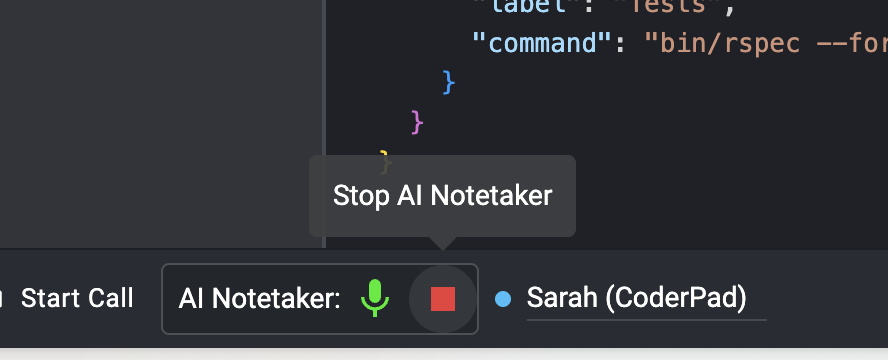
Interviewer or candidate can stop or mute transcription at any time with the controls in the pad footer.
Is it a GDPR compliant?
Yes.
What service is used to generate AI Notes?
Azure.
Even if the feature is turned off at the organizational level, does it record transcriptions anyway?
No. There are two requirements for AI Notetaker to record:
- The feature has to be turned on in organization settings.
- Pad participants have to agree to transcription when joining the call.
Does it record everyone in the pad or just those who agree?
Just those who agree.
How do I use closed captioning?
Click the CC button in “full size” video mode.
How long are AI Notes saved?
AI Notes are saved as long as the pad is saved. Customers can delete any pad, which will also fully delete the AI Notes from our data storage. If you use the auto-pad-delete setting, the AI Notes will be deleted along with the pad at that time.
Does the AI Notetaker support languages other than English?
Yes-ish. Because language models differ in maturity across languages—and because some interviews naturally mix languages or technical terminology—AI Note quality can vary. In mixed-language scenarios, certain words or phrases may be interpreted differently depending on context.
For best results, we recommend testing a short sample recording in the language(s) you plan to use. As Azure continues to improve its multilingual models, those enhancements will automatically benefit our AI Notes, highlights, and outline features.