AI Tools for Interview
Last updated on • Disponible en Français
Using AI Assist
✅ Your account administrator can make AI Assist available in pads by default in the Organization Settings. You can also turn this feature on or off for an individual pad in the Pad Settings by clicking on the settings icon ⚙️ at the bottom left of the screen.
You and
- GPT
- Claude
- Gemini
- Llama
To use it, simply click on the AI Assist tab, select your language model, and enter your prompt.
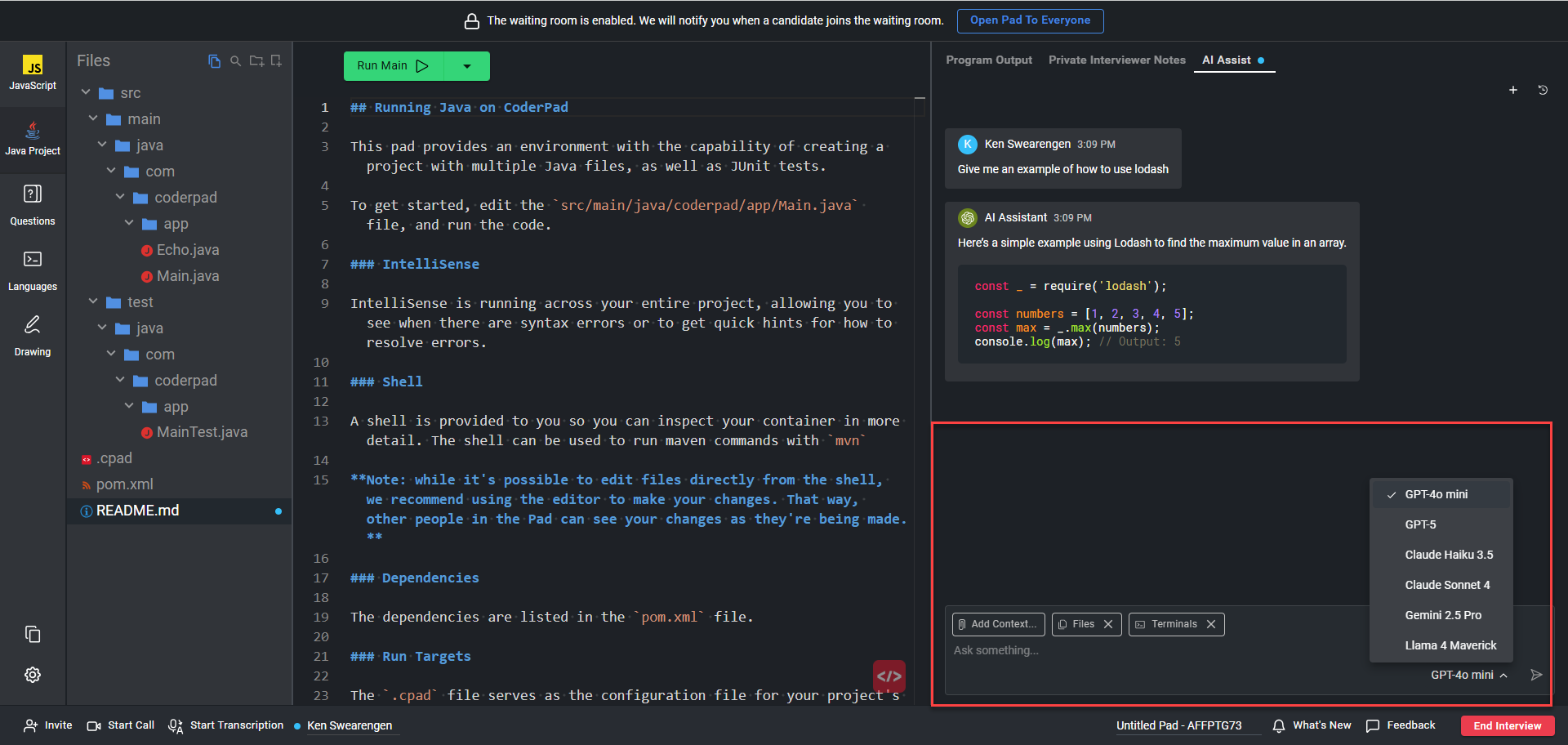
Some ways you can use the integration:
- Have candidates showcase their prompt engineering skills
- Review AI answers to technical questions with candidates to assess their critical thinking processes
- Allow candidates to use AI like they would any other tool to solve your questions
- Generate test data
- Create starter code in different programming languages
✅ All pad users’ prompts and AI output will be saved for review in playback mode.
ℹ️ Want more information on how to use the integration? Checkout the demonstration video on YouTube.
AI modes
✅ The AI Assistant will automatically detect the proper context of your question, no matter what mode you’re in.
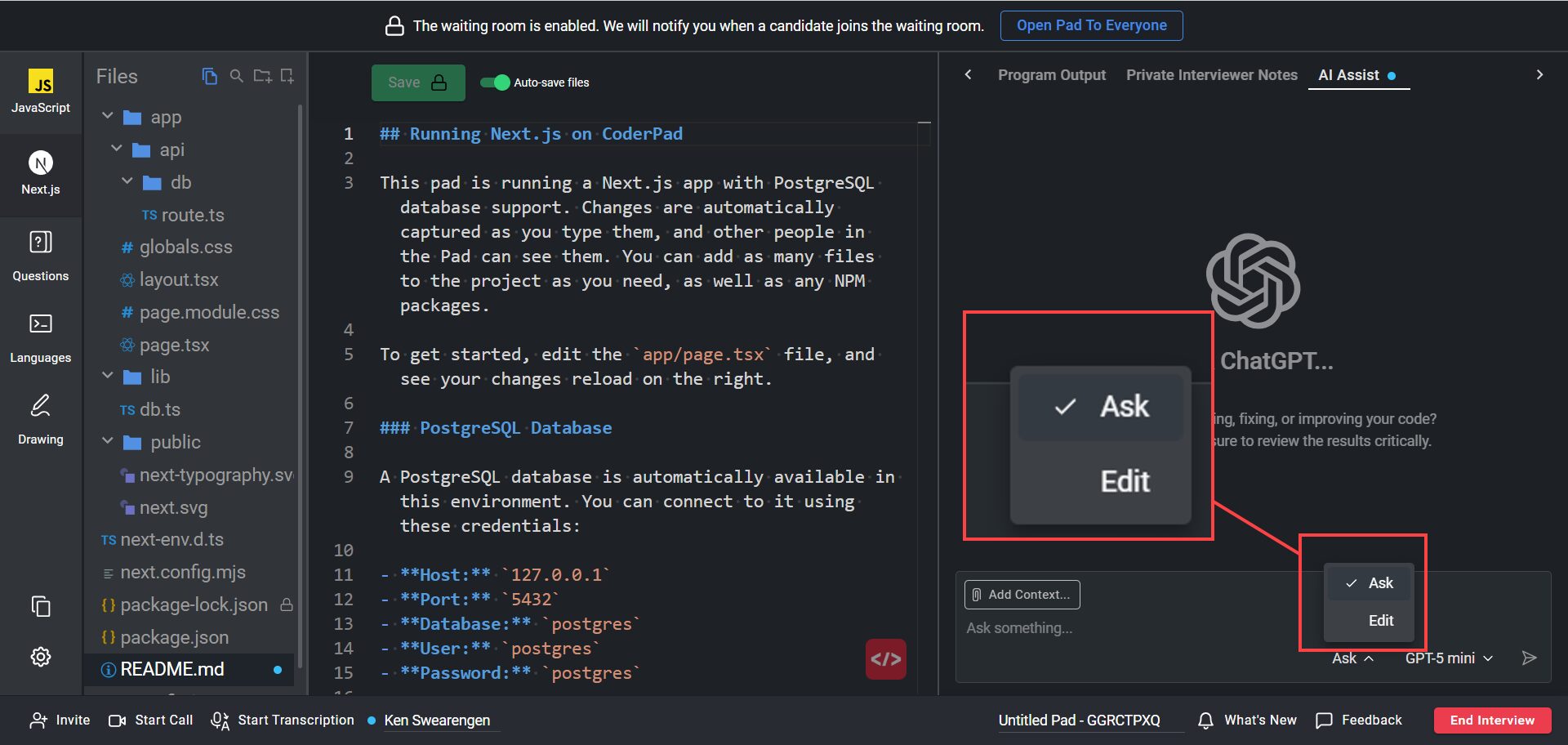
Ask mode will allow you to prompt the AI assistant to answer your requests, but won’t allow the assistant any write-access to the code.
To allow the AI assistant the ability to change the code (including the file structure), you’ll need to enable Edit mode.
AI Plan mode is when the AI first outlines a clear step-by-step approach to a task instead of jumping straight to the answer. This helps ensure better results by making the process more structured, transparent, and easier to review before execution.
Private vs Shared AI Assist
You have two ways to utilize AI Assist in an Interview.
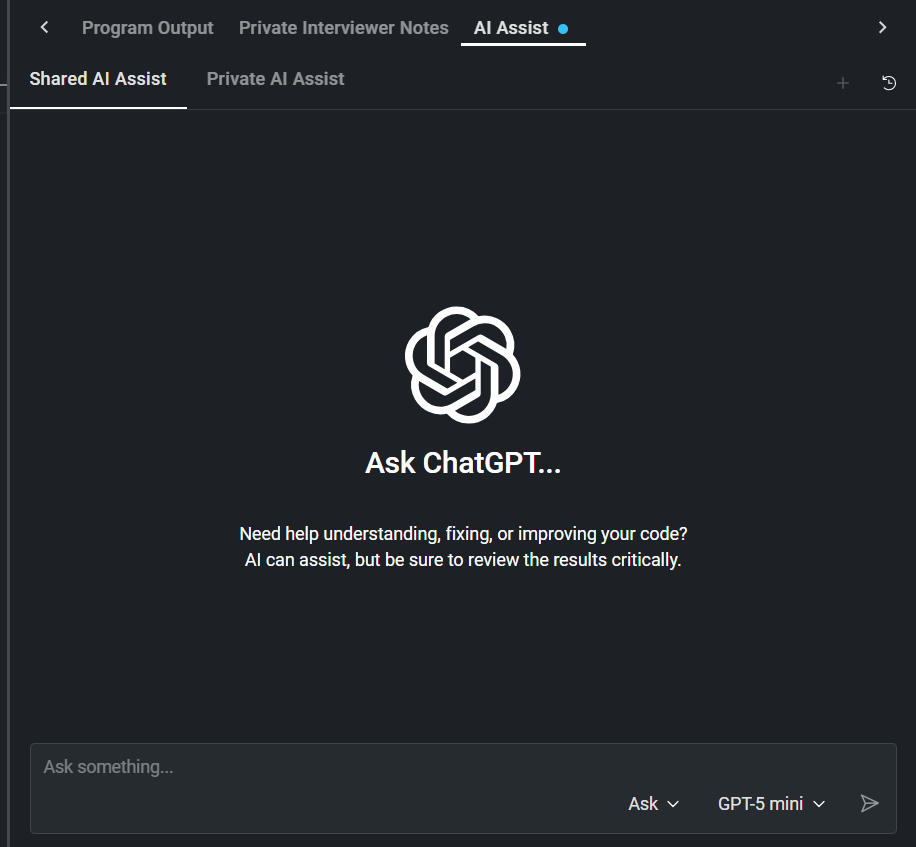
Shared AI Assist: Is AI that is available to both you and the candidate. You’ll both be able to see the prompt history here and utilize all modes.
Private AI Assist: Is an “Ask” only mode that assists you in the interview by analyzing candidate code, generating follow-up questions, and more. This mode is not visible to the candidate.
Add other AI tools
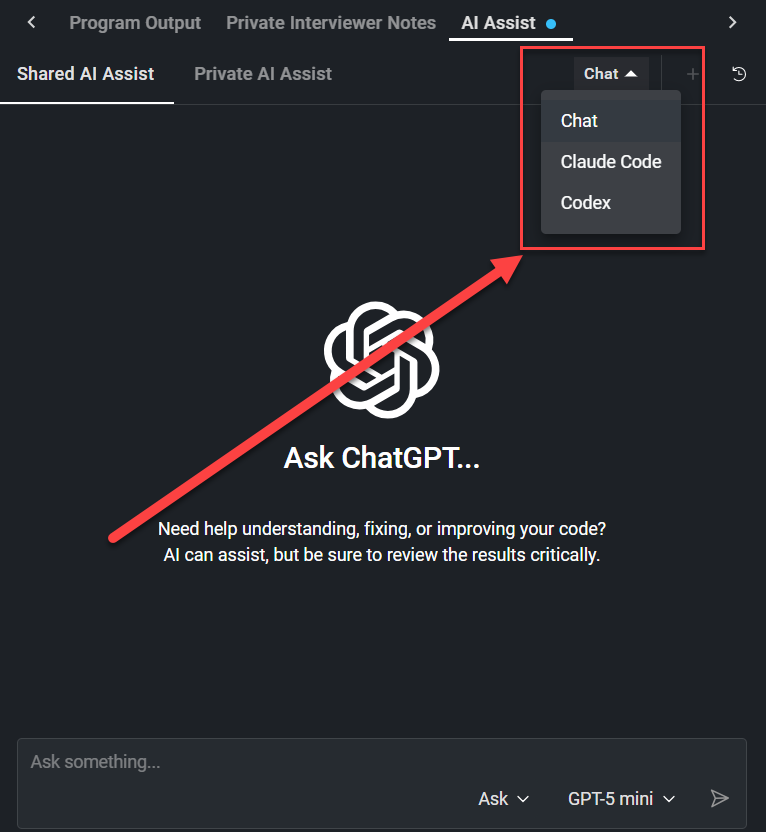
In multi-file languages, you’ll also have access to Claude Code and Codex. In the AI Assist you’ll be able to see it from the drop down menu: